Downloading Pinterest videos on iPhone is simple once you know where iOS stores browser downloads. You can use Pinterest Video Downloader for iPhone in Safari, Chrome, or another browser. No Pinterest login is required through PintVideo, and no App Store downloader is needed.
Step 1: Copy the Pinterest Link on iPhone
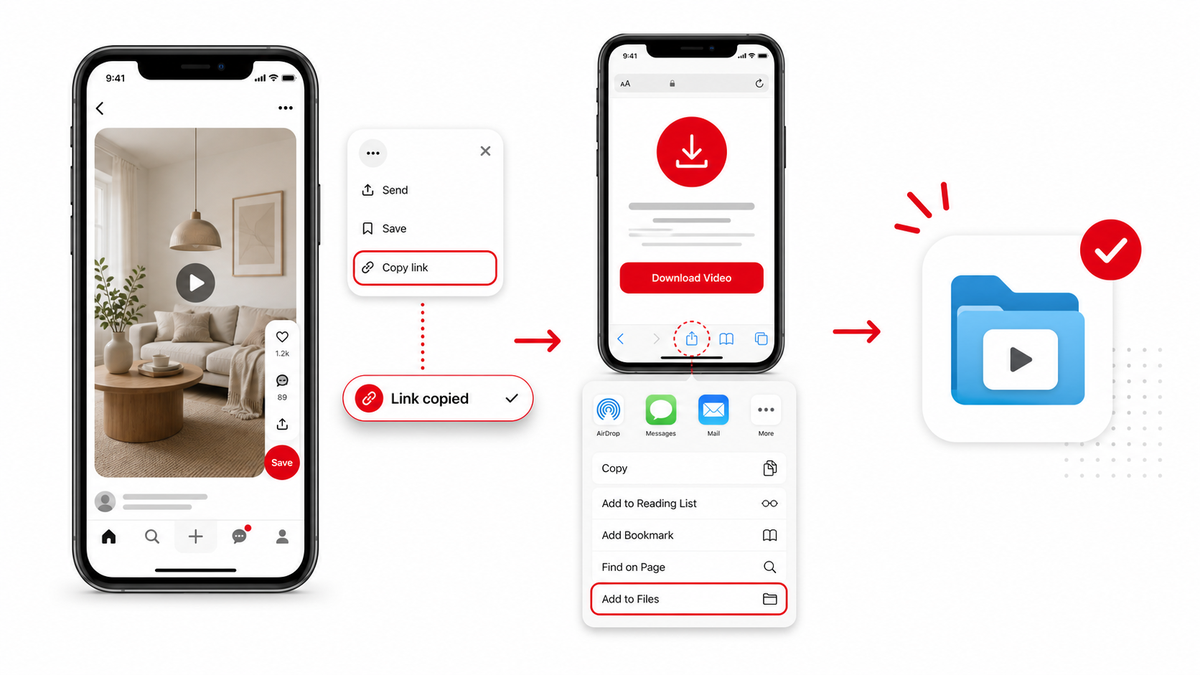
Open Pinterest, find the public video Pin, tap the share option, and copy the link. Make sure the link opens a single Pin, not a board, profile, search page, or home feed. Short pin.it links are fine when they resolve to a public video Pin.
Step 2: Open PintVideo in Safari
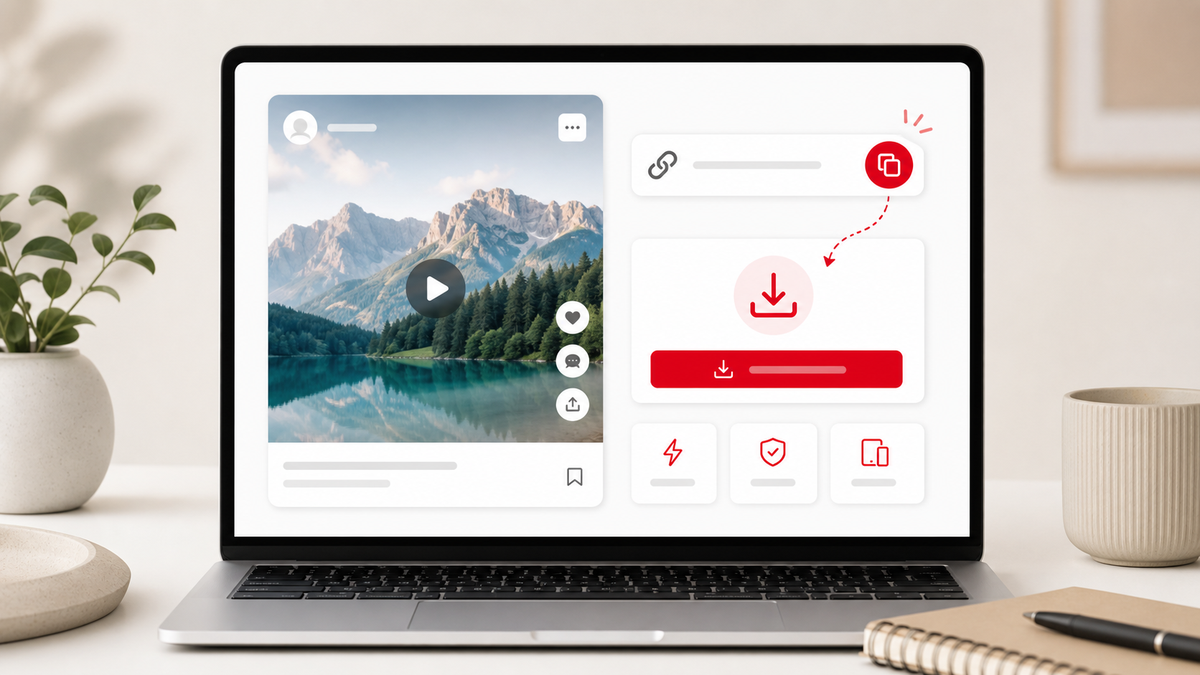
Open Safari and paste the copied link into PintVideo. The tool will resolve the Pin and show a preview when video media is available. If the page cannot resolve the URL, compare your link with the Pinterest link troubleshooting guide.
Step 3: Save the Video File
Tap the download button and allow Safari to save the MP4. Depending on your iOS version, the file may appear in Downloads inside the Files app, in the browser downloads list, or in iCloud Drive. From there, you can move it to Photos if needed.
iPhone Download Tips
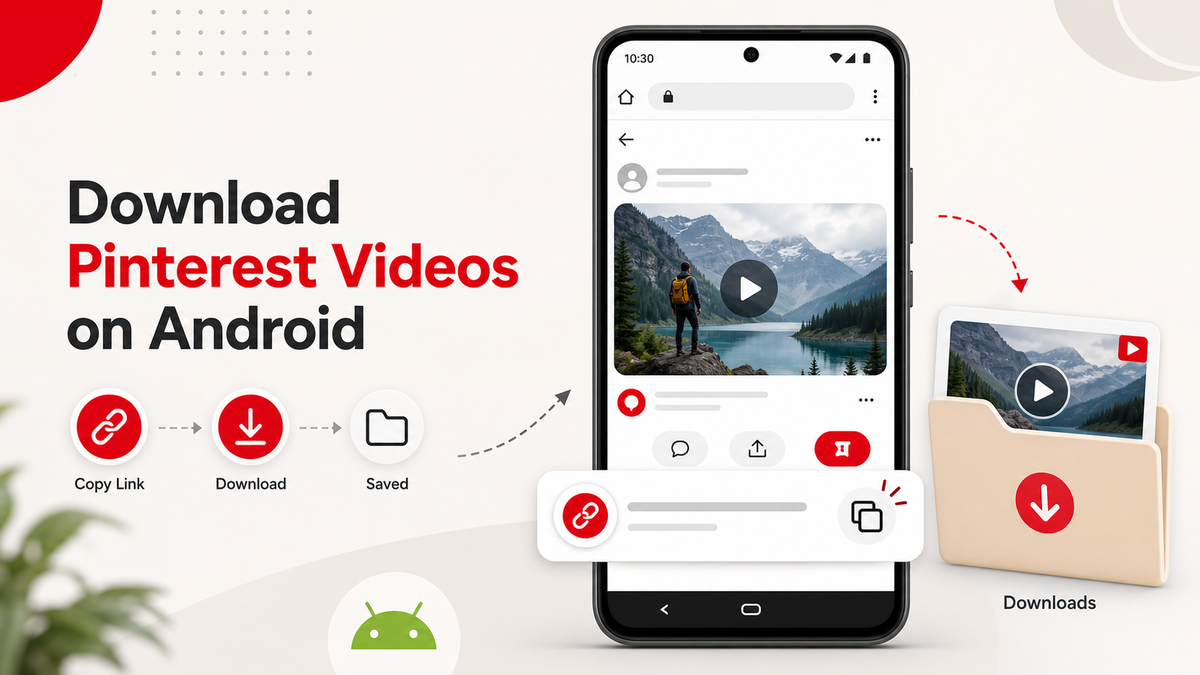
If the video opens in a new tab, use the share menu to save it to Files. If Safari blocks the download, refresh the page and try again. For Android-specific behavior, see the Android Pinterest video downloader guide.
FAQ
Do I need an iPhone app to download Pinterest videos?
No. PintVideo works in Safari and other mobile browsers.
Where are Pinterest videos saved on iPhone?
Most Safari downloads appear in the Files app under Downloads, unless your browser settings use another folder.
Can I download every Pinterest Pin on iPhone?
No. Only public video Pins with accessible media can be downloaded.